What I actually installed on Ubuntu 26.04 LTS
I talked previously about what I do after installing Ubuntu as a SWE . Here is what I actually did after the installation of the new Ubuntu 26.04 LTS.
As you might know from the previous post, I am a software developer for web and Android. I mainly develop on Ubuntu Linux - by choice.
install “restricted” software (media codecs) 🔗
Unfortunately, I could not connect to WiFi while installing Ubuntu 26.04 LTS because my WiFi hotspot is hidden and MAC-filtered. So, I need to install ubuntu-restricted-extras afterwards. Why I need it? to be able to play audio and video media files. GNOME default video player, can not play the basic mp4 files without those restricted software.
So, to install them, I ran this command in the terminal.
sudo apt install ubuntu-restricted-extras
Now, I can play most video/audio files without any problem in Ubuntu. If I needed an alternative video player LATER, I will install VLC player or MPV player.
FISH shell 🔗
I prefer fish shell, the friendly interactive modern shell on my terminal emulator.
I added this APT source to get the up-to-date fish version in APT.
$ sudo cat /etc/apt/sources.list.d/fish-shell-ubuntu-release-4.sources
Types: deb
URIs: https://ppa.launchpadcontent.net/fish-shell/release-4/ubuntu/
Suites: resolute
Components: main
Signed-By: -----BEGIN PGP PUBLIC KEY BLOCK-----
 .
 mQINBGY0i8EBEAC787CEn0bb9R6lgxSjwEzrfUGK2HVfUoSfKiKILlU/p+nwdBdx
 zKOGEtl2O8W4Q+KZkwEbD4llJKPFhzjF2CeP2qRKd/PLpiZoKhAr/NR7klQveqGx
 Hop3uXsdGFxsNv2z0VEyJ7vhO+X0AuAW9BcXpXBexltrIzqbuGg+BKTwAOc5qaWx
 xzDgcTvXR7xeudHv4vqXez93pd93WaRnjNB0vOUm03cKqFvfzfn1mJruThO3WE6S
 ISjC/rQF4IquNS5ncA2+NLfb7fsPpYUmfKCTucYK2i929Xw/cwLfqE668kQLfJ6G
 TiUK6B0EMK/Cvb/LYdN7RMXFrnWt6FnZORZM+9u4ZiCIa60OfW+xXjhmU6Lln3ZV
 enhcD0qZHqZLQIxWGxK9rKJsasoBFnbDzBNyMM6BfukQqh6VP3UzdXixPCW1lOFl
 omsPj3eoqmIf6tmyINMiJbmQrZmJ7Zn1tpTqScfdPJU06z26hcTQrn2+rvHtQV5V
 ebj9JMqvKuk5mG7zkjFgMHoqP6jLlVqsReCfY66VuYLg4o2m0r2F+wv7ZfFXYcCq
 LOycszdQe/SgJHobJc/yt/brZMrqFmGtYAERU7NcbRceuc4i2k1VnlygBT1AuvGT
 HoSgm9ct0MZlfKRLhkZm+izwxLqxVSAsB/DZJ3uWp4XsKx4XHjw2VFw5aQARAQAB
 tChMYXVuY2hwYWQgUFBBIGZvciBGaXNoIHNoZWxsIG1haW50YWluZXJziQJOBBMB
 CgA4FiEEiEIecD7cevVJZ97Uc8n8yeK7SNoFAmY0i8ECGwMFCwkIBwIGFQoJCAsC
 BBYCAwECHgECF4AACgkQc8n8yeK7SNoJUA//bnOSCrdit87tvsDmaok9+kQ2YYqL
 X4KVsKxI2QVsKhRXPJb3yRwQRLArEUhT8yg5kQBIaHKdDhAkH9PRFZeCin25x/lq
 LvjpnyslhlI9fhnImC21KqAPs8Svrb2LrvtfQK+072Fw5bISGJ6qlINU1vmJ0AIF
 poojZaudcGLiQym1hkyf7HU4loHdkyUKX0jCTS8c9E8pRrDpwdHkKI3pEZpVWva1
 zsmPgYXR/RRCt4zV4/lwX2WiCmYBBGdXn3D2mfA+ONfExngDfjpzXAQ8Dp9m3bDI
 AmtlaKRjHa9VKKd0wt6LH2JYmt52lUwoEvoiVf8M0poKrmPN+ft8EaOMpgORS8ut
 RZzVndHx4jFyZ+pVDt00J16Bblq6MSaGZalPneIfycx4tuwPPTX7CALUeMQ0V/Gy
 p053yvotLwsBC6KGjKugxUzgbSlp7WWiPEbYXZfjb7IZpNmKXtuvfyBo8rs3icez
 ZkUmljl2J27bhSIUZQ124ham6yQ3B8MfXUdctiWUCkOdunqUuBeHa5yeKJHTcFUH
 Y5nyyn79L5VLZ6YlwYn9qW0V/LvfnW2JmrXTVFjEhfUoEm0Zck8UBqWn2wfSagTI
 2KWU87IgN3MF7QG5EiLEAUA/DfagBwgjCpRFH8VUeWqMjTkQs9kjB/kvCcvHGp8g
 WVimNlxjmpCZsvk=
 =5r0P
 -----END PGP PUBLIC KEY BLOCK-----
Then I updated the local indexes (indeces) of software repositories via:
sudo apt update
After that I installed FISH via APT like this:
sudo apt install fish
I made it the custom command of my terminal by adding its path - which I got by which fish - in the terminal like this:
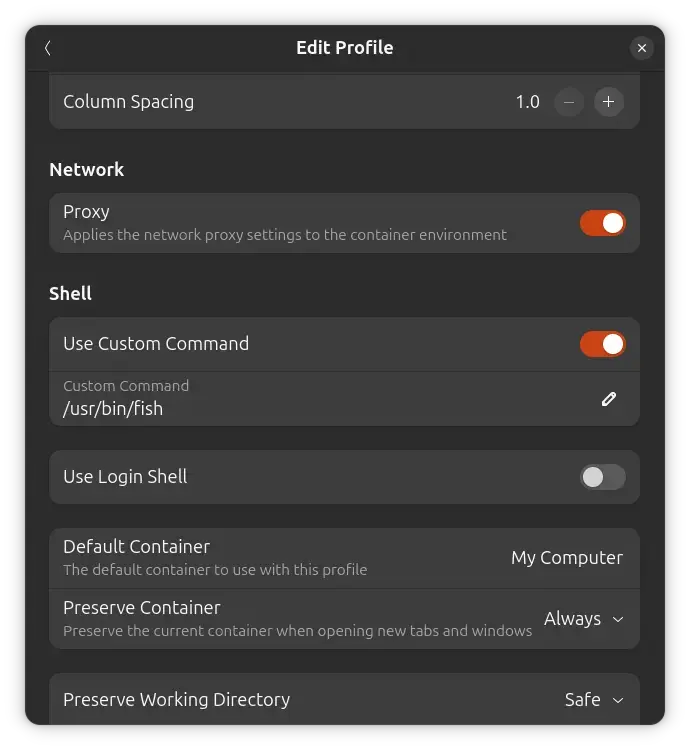
I have many fish functions to automate repeated tasks.
Go language 🔗
I prefer Go language for web development and CLI app development.
I install and upgrade Go toolchain/compiler using GoUp - my script.
I install some tools and programs via Go toolchain such as gosec, hugo, lazydocker, i, lazyinstaller, lazysql, and gh.
Hugo the static site generator 🔗
I prefer Hugo for building static websites. I install Hugo using Go toolchain like this:
go install github.com/gohugoio/hugo@latest
The same command will upgrade it if it is already installed.
Ghostscript (gs) 🔗
I use gs to optimize/compress PDF files using this FISH function/script:
function optimizePDF --description "optimizePDF <input.pdf> <output.pdf>"
 if not set -q argv[1]
 echo "input PDF file is not set"
 return 1
 end

 if not set -q argv[2]
 echo "output PDF file name is not set, re-using the same input filename with '-o' in the output filename"
 set -f out (string split -r -m1 . $argv[1])[1]-o.pdf
 else
 set -f out $argv[2]
 end

 if not string match -q '*.pdf' $out
 echo "output file is not ended with the right extension (.pdf)"
 return 1
 end

 gs -sDEVICE=pdfwrite -dCompatibilityLevel=1.4 -dPDFSETTINGS=/ebook -dNOPAUSE -dQUIET -dBATCH -sOutputFile=$out $argv[1] && echo "compressed the pdf file and saved it as $out"
 return 0
end
And I use it too to merge two or more PDF files into one PDF file using this script (FISH function):
function mergePDFs --description "mergePDFs <file.pdf> ..."
 if test (count $argv) -eq 0
 echo "no PDF files specified"
 echo "Usage example:"
 echo " mergePDFs 1.pdf another-file.pdf"
 return 1
 end

 for i in $argv
 if not string match -q '*.pdf' $i
  echo "the file is not a PDF file"
  return 1
 end
 end

 gs -dNOPAUSE -sDEVICE=pdfwrite -sOUTPUTFILE=merged_files.pdf -dBATCH $argv

 if test $status -ne 0
 echo "Error: the PDF files merging process failed."
 return 1
 end

 echo "merges all theses PDFs ($argv) into one PDF file named 'merged_files.pdf'"
end
lazysql 🔗
I install lazysql TUI via Go toolchain like this:
go install github.com/jorgerojas26/lazysql@latest
ffmpeg 🔗
Tools for transcoding, streaming and playing of multimedia files. FFmpeg is the leading multimedia framework, able to decode, encode, transcode, mux, demux, stream, filter and play pretty much anything that humans and machines have created. It supports the most obscure ancient formats up to the cutting edge.
This package contains:
- ffmpeg: a command line tool to convert multimedia files between formats.
- ffplay: a simple media player based on SDL and the FFmpeg libraries
- ffprobe: a simple multimedia stream analyzer
- qt-faststart: a utility to rearrange Quicktime files
I use these packages/executables for scripting and manipulating video streams and video files.
I install it via:
sudo apt install ffmpeg
I have a FISH function that removes exact frames from a video file to reduce its size. I wrote this function into ~/.config/fish/functions/exactframes.fish, here is the function code.
function exactframes --description "exactframes <input-video-file>"
 # check for at least one argument using set -q
 if not set -q argv[1]
 echo "no files provided"
 echo " exactframes <input-video-file>"
 return 1
 end

 # access the first argument/flag (the filename)
 set infilename $argv[1]
 set outfilename (string split -r -m1 . $argv[1])[1]-removedExactFrames.mp4

 # execute ffmpeg command with proper formatting
 ffmpeg -i "$infilename" -vf mpdecimate,setpts=N/FRAME_RATE/TB "$outfilename"

 # handle potential errors (optional)
 if test $status -ne 0
 echo "Error: ffmpeg command failed."
 return 1
 end

 echo "Successfully processed '$infilename' into '$outfilename'"
end
A function/script to convert an image to optimized/compressed file formats which are JPG, WebP, and AVIF.
Here is the content of opt4web Fish function I add in ~/.config/fish/functions/opt4web.fish:
function opt4web --description "opt4web <filename.png>"

 if not set -q argv[1]
 echo "[ERROR] no image path specified."
 echo "Usage:"
 echo " opt4web path/to/image.png"
 return 1
 end

 set in $argv[1]
 set out (string split -r -m1 . $argv[1])[1]

 if is_wsl
 ffmpeg.exe -i $in $out.avif -y
 ffmpeg.exe -i $in $out.webp -y
 ffmpeg.exe -i $in -q:v 10 $out.jpg -y
 else
 ffmpeg -i $in $out.avif -y
 ffmpeg -i $in $out.webp -y
 ffmpeg -i $in -q:v 10 $out.jpg -y
 end
end
I wrote a function/script to use fixed lower bitrate and added it in ~/.config/fish/functions/vidbitrate.fish. Here is the Fish function code:
function vidbitrate --description "vidbitrate <input-video-file>"
 if test (count $argv) -eq 1
 set in $argv[1]
 set out (string split -r -m1 . $argv[1])[1]-fixedBitrate.mp4

 ffmpeg -i $in -b:v 1M -b:a 192k $out

 if test $status -ne 0
  echo "Error: ffmpeg command failed."
  return 1
 end

 echo "Successfully processed '$in' to have fixed bitrate to reduce the disk space usage, and saved it as '$out'"
 else
 echo "no files provided"
 echo " vidbitrate <input-video-file>"
 return 1
 end
end
I use ffmpeg to compress and optimize MP3 audio files. I add the Fish function code in ~/.config/fish/functions/compressMP3.fish:
function compressMP3 --description "compressMP3 <audio-file.mp3>"
 if not string match -q '*.mp3' $argv[1]
 echo "the audio file is not MP3"
 return 1
 end

 set in $argv[1]
 set out (string split -r -m1 . $argv[1])[1]-o.mp3

 ffmpeg -i $in -vn -acodec libmp3lame -ac 2 -qscale:a 4 -ar 48000 $out
end
ffconvert - a Fish shell function for video conversion with hardware acceleration. I add this function/script in ~/.config/fish/functions/ffconvert.fish.
# ffconvert - A fish shell function for video conversion with hardware acceleration.
#
# This function automates FFmpeg video conversions, prioritizing NVIDIA NVENC
# hardware acceleration for H.264 encoding if an NVIDIA GPU is detected and
# FFmpeg is compiled with NVENC support. If NVENC is not available, it falls
# back to software encoding using libx264.
#
# Usage:
#  ffconvert -i <input_file> -o <output_file> [options]
#
# Options:
#  -i, --input <file>    Input video file (required).
#  -o, --output <file>    Output video file (required).
#
#  -c, --codec-v <codec>   Specify video codec (e.g., libx264, h264_nvenc, hevc_nvenc).
#               If not specified, h264_nvenc is preferred if detected, else libx264.
#
#  --preset <preset>     Video encoding preset.
#               - For libx264 (software): ultrafast, superfast, fast, medium (default), slow, slower, veryslow.
#               - For h264_nvenc (hardware): p1 (fastest) to p7 (slowest), or default (p5).
#
#  --tune <tune>       Video encoding tune.
#               - For libx264: film, animation, grain, stillimage, fastdecode, zerolatency, psnr, ssim.
#               - For h264_nvenc: hq (high quality, default), ll (low latency), ull (ultra low latency), vbr (variable bitrate).
#
#  --crf <value>       Constant Rate Factor for libx264 (e.g., 18-28). Lower is higher quality.
#               Only applicable for software encoders.
#
#  --cq <value>       Constant Quality for h264_nvenc (e.g., 1-51). Lower is higher quality.
#               Only applicable for hardware encoders.
#
#  -c-a, --codec-a <codec>  Specify audio codec (default: aac).
#
#  -b-a, --bitrate-a <rate> Audio bitrate (default: 128k).
#
#  --hwaccel-decode     Attempt hardware-accelerated decoding with CUDA for the input video.
#               This can speed up processing if your input video's codec is supported
#               by your NVIDIA GPU's hardware decoder (NVDEC).
#
# Examples:
#  ffconvert -i input.webm -o output.mp4
#  ffconvert -i input.mkv -o output.mp4 --codec-v libx264 --crf 20 --preset slow
#  ffconvert -i input.mov -o output_fast.mp4 --hwaccel-decode --preset p1 --cq 25
#  ffconvert -i video.mp4 -o smaller.mp4 --codec-v h264_nvenc --preset p7 --tune hq --cq 18 # Explicit NVENC with high quality
#  ffconvert -i highres.mov -o new.mp4 --hwaccel-decode # Decode with GPU, encode with default (NVENC if available)

function ffconvert --description "Convert video with FFmpeg, prioritizing NVIDIA hardware acceleration"
  # Parse arguments using argparse for robust flag handling
  argparse 'i/input=' 'o/output=' 'c/codec-v=' 'preset=' 'tune=' 'crf=' 'cq=' 'hwaccel-decode' -- $argv
  or begin
    # If argparse fails, show usage and exit
    __ffconvert_usage
    return 1
  end

  # Assign parsed input and output file paths
  set _input_file $_flag_input
  set _output_file $_flag_output

  # --- Input Validation ---
  if not set -q _input_file
    echo "Error: Input file (-i) is required."
    __ffconvert_usage
    return 1
  end

  if not set -q _output_file
    echo "Error: Output file (-o) is required."
    __ffconvert_usage
    return 1
  end

  # --- Hardware Acceleration Decoding Setup ---
  set _hwaccel_decode_params # Initialize as empty list
  if set -q _flag_hwaccel_decode
    # If --hwaccel-decode is specified, attempt CUDA decoding.
    # This assumes an NVIDIA GPU. For other hardware (Intel QSV, AMD AMF),
    # these parameters would need to be adapted (e.g., -hwaccel vaapi).
    # The current implementation focuses on NVIDIA as requested.
    set _hwaccel_decode_params -hwaccel cuda -hwaccel_output_format cuda
    echo "Attempting hardware-accelerated decoding with CUDA."
  end

  # --- Video Codec Selection and Default Parameters ---
  # Set default values for video encoding parameters
  set _default_video_codec "libx264"
  set _default_video_preset "medium"
  set _default_video_tune "" # Not all libx264 presets use a tune by default
  set _default_video_crf "23"
  set _default_video_cq "" # CQ is only for hardware encoders

  # Check for NVIDIA NVENC H.264 encoder availability
  # `2>&1` redirects stderr to stdout, as `ffmpeg -encoders` might print to stderr.
  # `grep -c` counts occurrences.
  set _nvenc_h264_available (test (ffmpeg -encoders 2>&1 | grep -c h264_nvenc) -gt 0)

  if $_nvenc_h264_available
    # If NVENC H.264 is available, set it as the preferred default codec
    set _default_video_codec "h264_nvenc"
    set _default_video_preset "p5" # A good balance for NVENC
    set _default_video_tune "hq"  # High quality tune for NVENC
    set _default_video_crf ""   # CRF is not used with NVENC
    set _default_video_cq "22"   # Constant Quality for NVENC
    echo "NVIDIA NVENC (h264_nvenc) detected. Prioritizing hardware encoding."
  else
    # If NVENC H.264 is not found, inform the user about falling back to software
    echo "NVIDIA NVENC (h264_nvenc) not found. Falling back to software encoding (libx264)."
  end

  # --- Apply User Overrides for Video Encoding Parameters ---
  # `fish_default` sets the variable to the first argument if it's not empty,
  # otherwise it uses the second argument (the default).
  set _video_codec (fish_default $_flag_codec_v $_default_video_codec)
  set _video_preset (fish_default $_flag_preset $_default_video_preset)
  set _video_tune (fish_default $_flag_tune $_default_video_tune)
  set _video_crf (fish_default $_flag_crf $_default_video_crf)
  set _video_cq (fish_default $_flag_cq $_default_video_cq)

  # --- Validate CRF/CQ usage based on the chosen codec ---
  # Provide warnings if the user tries to use a quality parameter incompatible with the codec.
  if test "$_video_codec" = "libx264" -a -n "$_flag_cq"
    echo "Warning: --cq is typically for hardware encoders. Ignoring --cq and using --crf for libx264."
    set _video_cq "" # Unset CQ if CRF is used
  else if string match -q "*_nvenc" "$_video_codec" -a -n "$_flag_crf"
    echo "Warning: --crf is typically for software encoders. Ignoring --crf and using --cq for NVENC."
    set _video_crf "" # Unset CRF if CQ is used
  end

  # --- Audio Encoding Parameters ---
  set _audio_codec (fish_default $_flag_codec_a "aac")
  set _audio_bitrate (fish_default $_flag_bitrate_a "128k")

  # --- Construct Video Encoder Options List ---
  # Build the list of video encoder-specific options dynamically
  set _video_encoder_options

  # Add preset if it's set
  if test -n "$_video_preset"
    set _video_encoder_options $_video_encoder_options -preset $_video_preset
  end

  # Add tune if it's set
  if test -n "$_video_tune"
    set _video_encoder_options $_video_encoder_options -tune $_video_tune
  end

  # Add quality parameter (CRF or CQ) based on which one is applicable and set
  if test -n "$_video_crf"
    set _video_encoder_options $_video_encoder_options -crf $_video_crf
  else if test -n "$_video_cq"
    set _video_encoder_options $_video_encoder_options -cq $_video_cq
  end

  # --- Final FFmpeg Command Construction ---
  # Assemble the complete FFmpeg command
  set _ffmpeg_cmd ffmpeg $_hwaccel_decode_params -i "$_input_file" -c:v $_video_codec $_video_encoder_options -c:a $_audio_codec -b:a $_audio_bitrate "$_output_file"

  echo "---"
  echo "Executing FFmpeg command:"
  echo "$_ffmpeg_cmd"
  echo "---"

  # Execute the FFmpeg command
  # `eval` is used here to correctly expand the command components,
  # especially with potentially dynamic options and quoted file paths.
  eval $_ffmpeg_cmd
end

# Helper function to display usage instructions for ffconvert
function __ffconvert_usage
  echo "Usage: ffconvert -i <input_file> -o <output_file> [options]"
  echo ""
  echo "This function converts video files using FFmpeg. It prioritizes NVIDIA hardware acceleration (NVENC) for H.264 encoding if available. Otherwise, it falls back to software encoding (libx264)."
  echo ""
  echo "Options:"
  echo " -i, --input <file>    Input video file (required)."
  echo " -o, --output <file>    Output video file (required)."
  echo " -c, --codec-v <codec>   Specify video codec (e.g., libx264, h264_nvenc, hevc_nvenc)."
  echo "              If not specified, h264_nvenc is preferred if detected, else libx264."
  echo " --preset <preset>     Video encoding preset."
  echo "              - For libx264: ultrafast, superfast, fast, medium (default), slow, slower, veryslow."
  echo "              - For h264_nvenc: p1 (fastest) to p7 (slowest), or default (p5)."
  echo " --tune <tune>       Video encoding tune."
  echo "              - For libx264: film, animation, grain, stillimage, fastdecode, zerolatency, psnr, ssim."
  echo "              - For h264_nvenc: hq (high quality, default), ll (low latency), ull (ultra low latency), vbr (variable bitrate)."
  echo " --crf <value>       Constant Rate Factor for libx264 (e.g., 18-28). Lower is higher quality."
  echo " --cq <value>       Constant Quality for h264_nvenc (e.g., 1-51). Lower is higher quality."
  echo "              Only one of --crf or --cq should be used, depending on the encoder."
  echo " -c-a, --codec-a <codec>  Specify audio codec (default: aac)."
  echo " -b-a, --bitrate-a <rate> Audio bitrate (default: 128k)."
  echo " --hwaccel-decode     Attempt hardware-accelerated decoding with CUDA for input."
  echo ""
  echo "Examples:"
  echo " ffconvert -i input.webm -o output.mp4"
  echo " ffconvert -i input.mkv -o output.mp4 --codec-v libx264 --crf 20 --preset slow"
  echo " ffconvert -i input.mov -o output_fast.mp4 --hwaccel-decode --preset p1"
end
I wrote a Fish function in ~/.config/fish/functions/fsubtitle.fish to add subtitles in the video container itself.
function fsubtitle --description "fsubtitle <video-file> <subtitles.srt>"
 if test (count $argv) -eq 3
 set vid $argv[1]
 set sub $argv[2]
 set out $vid-subtitled.mp4

 ffmpeg -i $vid -vf subtitles=$sub $out

 if test $status -ne 0
  echo "Error: ffmpeg command failed."
  return 1
 end

 echo "Successfully added subtitles on the video, and saved it as '$out'"
 else
 echo "not enough arguments."
 echo " fsubtitle <video-file> <subtitles.srt>"
 return 1
 end
end
webm2mp4 is a Fish function to convert webm video into an MP4 using ffmpeg. Here is the Fish function I added it in ~/.config/fish/functions/webm2mp4.fish:
function webm2mp4 --description "webm2mp4 <input.webm> ..."
 for i in $argv
 if string match -q "*.mp4" "$i"
  echo "it is already an MP4 video"
  return 1
 end

 if not string match -q "*.webm" "$i"
  echo "the file is not WebM video file"
  return 1
 end

 set in $i
 set out (string split -r -m1 . $i)[1].mp4

 # macOS specific
 #ffmpeg -loglevel quiet -i $in -c:v h264_videotoolbox -preset slow -crf 22 -c:a aac -b:a 128k $out

 # linux
 ffmpeg -i $in -c:v libx264 -preset slow -crf 22 -c:a aac -b:a 128k $out
 # nvidia GPU accelerated command
 # ffmpeg -i $in -c:v h264_nvenc -preset slow -crf 22 -c:a aac -b:a 128k $out
 # ffmpeg -i in.webm -c:v h264_nvenc -preset p5 -tune hq -cq 22 -c:a aac -b:a 128k out.mp4

 # simple command, but too slow
 # ffmpeg -i video.webm output.mp4

 echo "'$in' converted into webm video format and saved as '$out'."
 end
end
vidfps is a Fish function that uses ffmpeg to set the video to 24 frames per second (fps). Here is the source code I have in ~/.config/fish/functions/vidfps.fish:
function vidfps --description "vidfps <input.mp4>"

 if not set -q argv[1]
 echo "[ERROR] no video specified."
 echo "Usage:"
 echo " vidfps path/to/video.mp4"
 return 1
 end

 ffmpeg -i $argv -filter:v fps=fps=24 (string split -r -m1 . $argv)[1]-24fps.mp4
end
screencast is a custom Fish function that uses ffmpeg to record the screen and save the recorded video into ~/Videos/ directory. Here is its source code I have in ~/.config/fish/functions/screencast.fish:
function screencast --description "screencast ~/Videos/<title dir>"

 set current_datetime (date +%Y-%m-%dT%H-%M-%S)

 if not set -q argv[1]
 echo "[WARNING] no location/directory specified to save the screencast into."
 echo "saving the screencast into ~/Videos ..."

 ffmpeg -f x11grab -i "$DISPLAY" ~/Videos/$current_datetime.webm

 return 0
 end

 set dir $argv[1]

 # create the directory if not found
 if not test -d $dir
 mkdir -p $dir
 end

 ffmpeg -f x11grab -i "$DISPLAY" $dir/$current_datetime.webm

end
dim2x is a Fish function I wrote to use ffmpeg to make the resolution/scale of the video grow by 2 folds. Here is the source code of this Fish function I have in ~/.config/fish/functions/dim2x.fish:
function dim2x --description "dim2x <input-video-file>"
 # check for at least one argument using set -q
 if not set -q argv[1]
 echo "no files provided"
 echo " dim2x <input-video-file>"
 return 1
 end

 set infilename $argv[1]
 set inbase (string split -r -m1 . $argv[1])[1]
 set inext (string split -r -m1 . $argv[1])[2]
 set outfilename $inbase-2x.$inext

 ffmpeg -i "$infilename" -vf "scale=iw*2:ih*2" "$outfilename"

 if test $status -ne 0
 echo "Error: ffmpeg command failed."
 return 1
 end

 echo "Successfully processed and enlarged by 2X from '$infilename' into '$outfilename'"
end
ffmpegthumbnailer is a fast and lightweight video thumbnailer.
tools I install via Go toolchain 🔗
air: a tool for hot reloading Go web projects:
go install github.com/air-verse/air@latest
hugo: a static site generator/builder.
go install github.com/gohugoio/hugo@latest
i the installer: a wrapper over all system package managers such as APT, Pacman, Yum, Snap, Flatpak, .. etc.
go install github.com/abanoubha/i@latest
Orbiton (o): a simple terminal text editor.
go install github.com/xyproto/orbiton/v2@latest && cp -i ~/go/bin/orbiton ~/go/bin/o
lazygit: a TUI tool to use Git in the terminal.
go install github.com/jesseduffield/lazygit@latest
gosec - Go Security Checker: inspects source code for security problems by scanning the Go AST and SSA code representation.
go install github.com/securego/gosec/v2/cmd/gosec@latest
I will update this post with more software tools I install on a daily basis.
I hope you enjoyed reading this post as much as I enjoyed writing it. If you know a person who can benefit from this information, send them a link of this post. If you want to get notified about new posts, follow me on YouTube , Twitter (x) , LinkedIn , and GitHub .